Pick the environment
Select desktop consumer hardware or a physical mobile device. Choose the proxy route that fits the destination, with native GPU rendering available in every instance.
The platform / Browser as a Service
Connect to a managed browser with Playwright or Puppeteer. Cloud Dev Tools brings together real consumer hardware, a GPU in every instance, physical mobile devices, intelligent proxy routing, and an automation firewall—so you can focus on what your browser needs to do.
import { chromium } from 'playwright';

// Connect to a GPU-backed desktop browser
const browser = await chromium.connectOverCDP(
  'wss://api.clouddev.tools/v1/browser?device=desktop&token=YOUR_API_KEY'
);

const page = await browser.newPage();
await page.goto('https://example.com');
import puppeteer from 'puppeteer-core';
// Connect to a physical mobile browser
const browser = await puppeteer.connect({
browserWSEndpoint:
'wss://api.clouddev.tools/v1/browser?device=mobile&token=YOUR_API_KEY'
});
const page = await browser.newPage();
await page.goto('https://example.com');How it works
Browser as a Service gives your application access to a remote browser instead of launching and maintaining one locally. Your code controls the session; Cloud Dev Tools manages the browser environment underneath.
Select desktop consumer hardware or a physical mobile device. Choose the proxy route that fits the destination, with native GPU rendering available in every instance.
Connect to a browser endpoint with your API key instead of launching a local browser. Keep your workflow logic, selectors, and assertions, and validate them with the device profile you choose.
Run your script, follow the live view, and return to searchable logs and recordings. Develop and try code in supported languages directly from the portal.
Built into the browser platform
A browser library controls the page. Our platform also addresses automation leaks and the challenges that can interrupt the session.
Library firewall
Methods in automation libraries such as Puppeteer and Playwright can leak objects that a website’s web application firewall detects. Our own library firewall sits between your automation client and the browser to prevent those detectable object leaks.
You keep familiar browser APIs while the platform handles this layer underneath your script. It works alongside real device signals, native browser handshakes, proxy routing, and system-level input.
Automation leak prevention at the library boundary.
AI CAPTCHA solving
A CAPTCHA can interrupt a research agent, data collection job, or browser workflow. Cloud Dev Tools uses locally run AI models to help resolve difficult CAPTCHA challenges during the session.
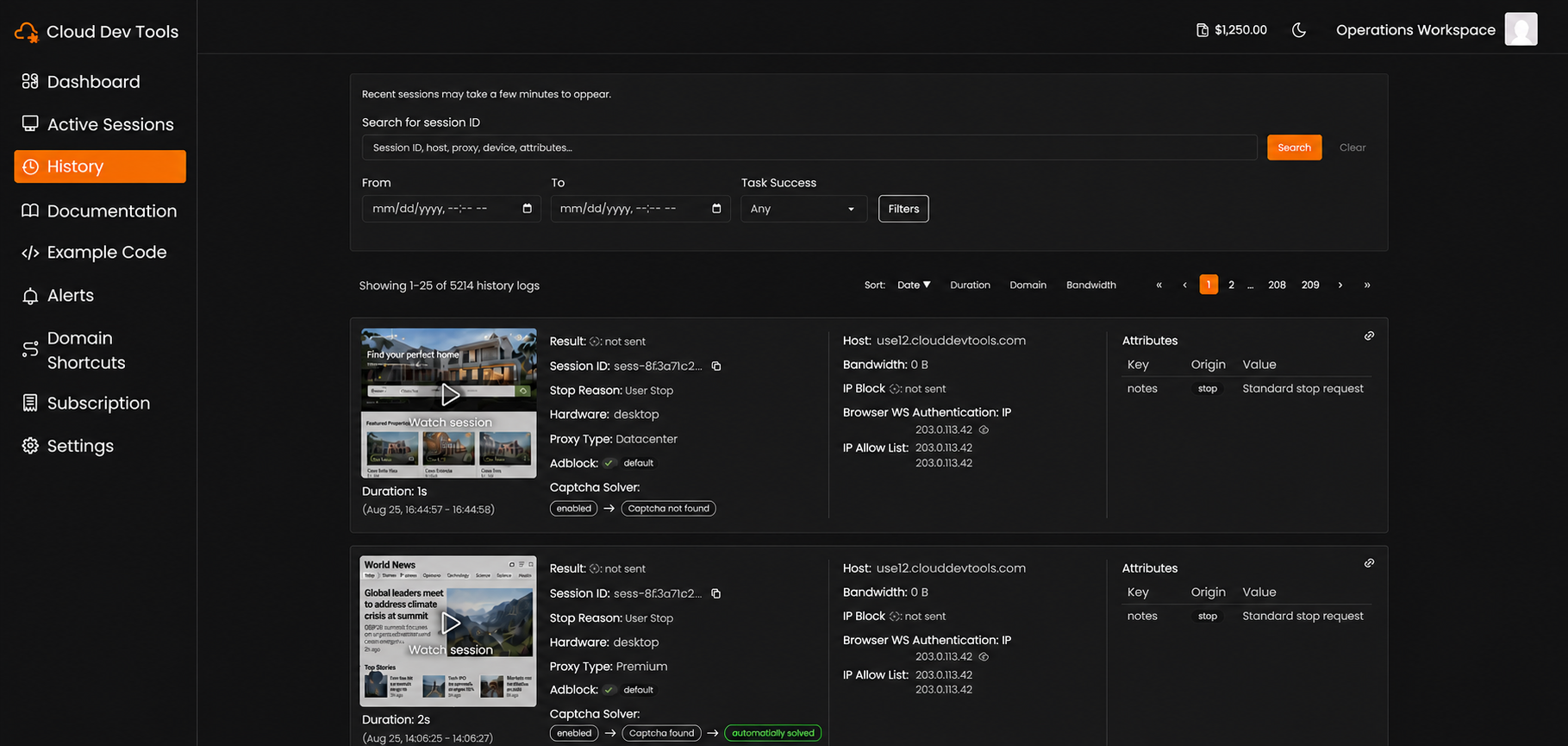
CAPTCHA assistance is part of the platform’s approach to browser access, alongside the library firewall and the network and device layers. Inspect CAPTCHA solver status in the session history when investigating a run.
Results depend on the challenge and the target website.
The hardware makes a difference
Websites see more than your script. They see the browser’s protocols, device capabilities, graphics, and interaction patterns. We bring those layers together in a real browsing environment.
Use native hardware rendering for WebGL, canvas, video, and page composition. Browsers run on real consumer hardware and report actual CPU and RAM values in JavaScript.
Choose a physical mobile device for mobile web workflows. The session runs in an actual mobile environment, rather than a desktop browser with a resized viewport.
TLS and protocol handshake parameters come from the browser itself. Your workflow is not tied to an older browser binary bundled with an automation library.
Input travels through the same system-level path as real peripherals. Mouse movements and keystrokes mimic human behavior as your workflow interacts with the page.
From development to investigation
The browser is only half the workflow. Develop in the portal, follow active sessions, and return to the evidence when something needs a closer look.
Let people and AI agents follow the browser as a workflow runs.
Find past sessions, inspect detailed logs, and review clear recordings.
Write and run tests in supported languages without local IDE or environment setup.
Use local AI models to help resolve difficult CAPTCHA challenges during a session.
One product, many workflows
Use the same Browser as a Service platform for agents, data collection, repeatable web tasks, and QA. Explore the solution that fits your work.
Common questions
We operate the browser environment and consumer hardware fleet, keep regular browsers current, and bring together proxy routing, the library firewall, system-level interactions, AI CAPTCHA assistance, and session visibility. Your application supplies the workflow logic.
No. Browser as a Service is our single product. AI agents, web scraping, automation, and testing are different ways to use the same browser platform.
Connect to a remote browser endpoint rather than launching a local browser. Keep your existing browser workflow logic and validate library and device compatibility for your workload. See the API documentation for connection details.
It sits between automation libraries such as Puppeteer and Playwright and the browser to prevent detectable object leaks. It addresses automation signals alongside the platform’s browser, network, device, and input layers.
Cloud Dev Tools uses locally run AI models to help resolve difficult CAPTCHA challenges during browser sessions. You can inspect CAPTCHA solver status in session history. Success varies by challenge and website.
Yes. Follow active sessions through a live view, search historical runs, inspect detailed logs and proxy information, and replay recordings. The portal also supports writing and running tests in supported languages.
Browser as a Service