End-to-end web journeys
Exercise sign-in, navigation, forms, and checkout flows in the applications you test. Connect from your existing test runner and keep assertions in your suite.
Testing
Validate browser flows on consumer desktop hardware and physical mobile devices. Bring Playwright or Puppeteer, exercise current browsers with native GPU rendering, and see the full session when a test needs investigation.
Built for Testing
Choose a real device environment for the flows you care about, then use your test code to check behavior and results.
Exercise sign-in, navigation, forms, and checkout flows in the applications you test. Connect from your existing test runner and keep assertions in your suite.
Check mobile web layouts and interactions on physical mobile devices. Test the actual device environment alongside your desktop coverage.
Exercise WebGL, canvas, and visual interfaces with a native GPU. Use proxy targeting to investigate pages that vary by geographic location.
The Cloud Dev Tools difference
Browser access is more than an endpoint. These capabilities work together underneath your code, across AI agents, scraping, automation, and testing.
Automation libraries can leak objects that a website’s web application firewall detects. Our own firewall sits between libraries such as Puppeteer and Playwright and the browser to prevent those detectable object leaks.
Your library → CDT firewall → Browser
Every browser instance has a native GPU for hardware rendering. WebGL, canvas, video, and page composition use real graphics hardware, with actual consumer CPU and RAM values reported in JavaScript.
Consumer CPU · Real RAM · Native GPU
Run desktop browsers on consumer hardware or choose physical mobile devices. Mobile sessions use an actual mobile browser environment rather than desktop emulation with a smaller viewport.
Real desktop hardware · Physical mobile
Choose datacenter, residential, or mobile proxies, city-level targeting, or bring your own proxy. The API’s domain-based routing keyword helps automatically select an appropriate proxy for your target website.
Domain-based routing · Flexible proxies
We run regular browsers and keep them up to date. TLS and protocol handshake parameters come from the browser itself, without tying your workflow to an older browser binary bundled with an automation library.
Up-to-date browsers · Native protocols
Mouse and keyboard events execute at the system level, through the same input path as real peripherals. Movements and keystrokes mimic human behavior instead of relying only on synthetic page events.
System-level mouse · System-level keyboard
From code to browser
Use Playwright or Puppeteer with a managed browser endpoint. Start with the connection details in the API documentation.
Read the integration documentationChoose the desktop or physical mobile profile for your test. Every instance includes a GPU for native graphics rendering.
Point your Playwright or Puppeteer browser connection at Cloud Dev Tools. Keep the runner, assertions, and CI orchestration in your project.
Follow the live view or return to the session history for logs and recordings. Use the portal to try supported-language test code without local setup.
From development to investigation
The browser is only half the workflow. Develop in the portal, follow active sessions, and return to the evidence when something needs a closer look.
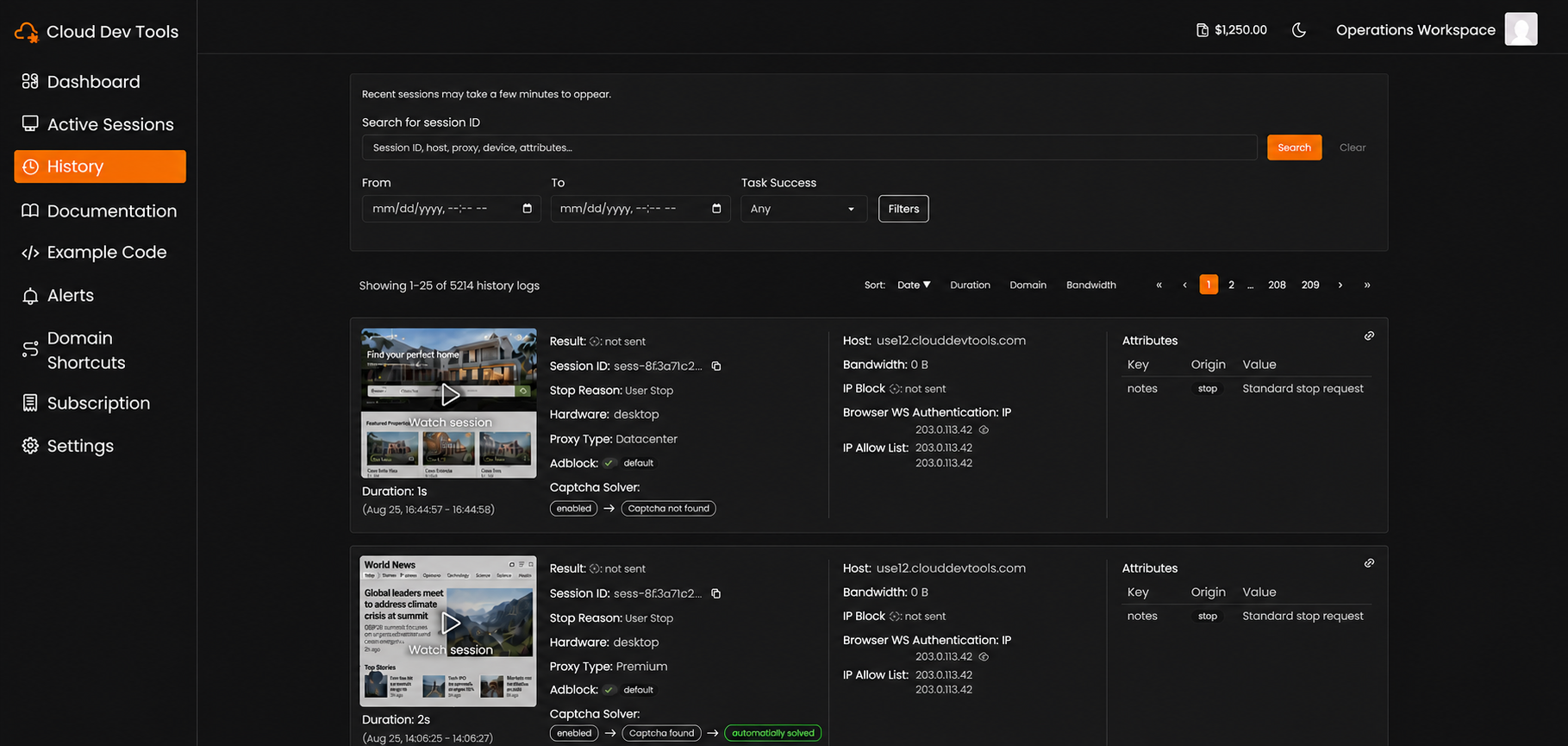
Let people and AI agents follow the browser as a workflow runs.
Find past sessions, inspect detailed logs, and review clear recordings.
Write and run tests in supported languages without local IDE or environment setup.
Use local AI models to help resolve difficult CAPTCHA challenges during a session.
Common questions
No. Mobile profiles run on physical mobile devices rather than desktop browser emulation. Desktop browsers run on real consumer hardware.
Your CI job can use a Playwright or Puppeteer client to connect to the remote browser endpoint. Keep test execution, assertions, and reporting in your existing pipeline.
Cloud Dev Tools provides the browser environment and session visibility. You continue to use your own test framework and assertions. Validate framework and device compatibility for your suite.
A complete browser foundation